Overview
All store widgets
What each Syncnity widget does, where it appears, and the unique impact on the buyer journey.
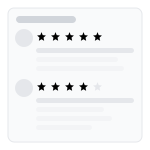
Highlight customer experiences across the whole buyer journey with Syncnity’s storefront widgets. Each widget turns published reviews into social proof in a different place: product pages, collections, search, homepage, cart, and a floating tab.
In this article we look at every widget, what it does, and the unique job it has. In the app: Reviews → Widgets then Customize. Each type has its own page:
- Product Review — `/admin/reviews/widgets/customize/product-review`
- Star Rating — `/admin/reviews/widgets/customize/star-rating`
- Snippets — `/admin/reviews/widgets/customize/snippets`
- Popup — `/admin/reviews/widgets/customize/popup`
- Sidebar — `/admin/reviews/widgets/customize/sidebar`
- Trust Badge — `/admin/reviews/widgets/customize/trust-badge`
- Video Slider — `/admin/reviews/widgets/customize/video-slider`
- Carousel (including cart-style carousel) — `/admin/reviews/widgets/customize/carousel`
Widget reports live at `/admin/reviews/widgets/reports`. On the live store, the same widgets render on product pages (stars, snippets, carousel, trust badge, popup, sidebar bubble, video slider, and the write-a-review form).
The library types are: Product Review, Star Rating, Snippets, Popup, Sidebar, Syncnity Trust Badge, Video Slider (photo/video), Cart Review, and Carousel. Widgets only render after the Syncnity app embed is on.
Product Review Widget
The Product Review widget is the full review experience on a product page: average rating, review count, written reviews, photos and video, filters, and helpful votes. If Q&A is enabled, shoppers can also ask questions in the same area.
Customize layout (list, grid, or gallery), stars, fonts, and colors from the widget’s dedicated settings page. Branding defaults come from Settings → Branding unless you override them here.
This widget can be added to:
- Product pages (default)
- A dedicated reviews / “happy customers” section if you place the app block there
Open the Product Review Widget guide
Star Rating Widget
The Star Rating widget shows a product’s average score and review count at a glance — not the full review list. It builds credibility in listings, search, and at the top of a product page before the shopper scrolls to the full widget.
You can add it to product pages, collection grids, and search results, and match the star icon to your brand.
Open the Star Rating Widget guide
Snippets Widget
The Snippets widget puts review schema on the page so Google can show stars in search results (when Google’s eligibility rules are met). On the storefront it also supports a compact glimpse of reviews near the purchase decision.
Use it together with the Product Review widget: one for on-page proof, one for search.
Open the Snippets Widget guide
Popup Widget
The Popup widget highlights a single recent review for a few seconds, then can rotate. It is meant to grow interest without blocking the page. On a product page it prefers reviews for that product.
Typical placements: all store pages except checkout, after a short delay or after scroll.
Reviews Sidebar Widget
The Sidebar widget is a tab on the edge of the screen. When a visitor clicks it, a floating panel opens with store reviews so they never leave the page they are on.
Use it when you want proof available while shoppers scroll photos and specs.
Trust Badge
The Trust Badge is a compact snapshot of total published reviews and average rating. Put it in the header, footer, or a landing block so visitors see store-wide credibility before they pick a product.
Photo / Video Slider
The Photo / Video Slider (video slider in the widget library) is a visual UGC gallery. It puts customer photos and clips front and center on the homepage or a landing page so visitors see the product in real life.
Open the Photo / Video Slider guide
Cart Reviews Widget
The Cart Reviews widget shows ratings and reviews next to the cart. The job is simple: reduce last-second doubt before checkout.
Open the Cart Reviews Widget guide
Card Carousel Widget
The Card Carousel combines text, stars, and photos in a rotating set of cards. Use it on the homepage when you want mixed social proof, not only a media gallery or only quotes.
If you cannot see widgets on the store, start with Enable the Syncnity app embed.
Did this answer it?
Your vote helps us write the next guide.